01 / Prepare
Choose a clean text sample
Start with the original image if you have it, rather than a small screenshot of a screenshot. Crop around a single line in one font. Keep the whole letters, including ascenders, descenders and punctuation, and remove unrelated artwork.
Choose several readable letters rather than one character. Lowercase a and g, uppercase R and G, and numbers can reveal differences between similar families. Straight, high-contrast text is easier to compare than curved, blurred or shadowed lettering.
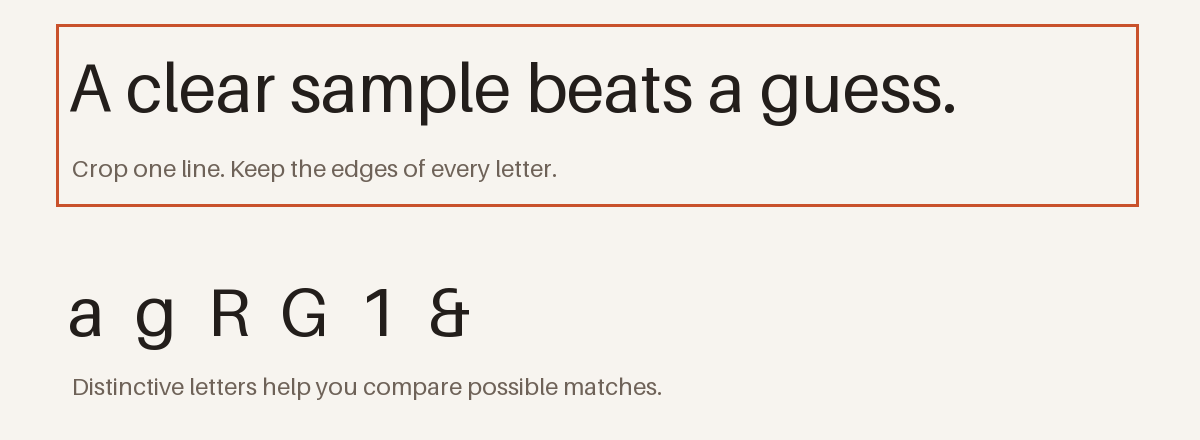
Crop with your phone’s photo editor or an image editor before uploading; GetMyFont does not currently include a cropping tool.
02 / Identify
Upload the image to GetMyFont
- Open GetMyFont’s image font finder and choose From image.
- Select your saved crop, or drag it into the upload area. PNG, JPG and WebP are practical choices; keep the file at 8 MB or less.
- Select Identify fonts. If no readable sample is found, try a sharper image with more complete letters.
- Read the likely matches, usage notes and alternatives, rather than relying on the first name alone.
An image match is a starting point, not proof. Pixels do not contain a reliable font-family name. Similar designs, altered logos and custom lettering can make an exact identification impossible.
03 / Compare
Check whether the suggested font really matches
Preview the same words in the suggested font using the font provider’s specimen or preview tool. Compare the shapes of individual letters first, then width, weight and spacing. A wider sample caused by letter spacing is not necessarily a different font.
- Look at structure: does the lowercase g have one loop or two? Is the R leg straight or curved? How is the 1 drawn?
- Try another weight: regular and bold versions of one family may look surprisingly different.
- Compare other candidates: when two families look close, retain both until you find stronger evidence.
GetMyFont labels visual candidates as unverified. Where a result includes comparison with six reference families, its glyph-overlap value describes that limited comparison—not the probability that the font is correct across all existing fonts.
Before downloading or using a match, check the font’s licence for your intended use. Identifying a font does not grant permission to use it. Google Fonts offers open-source fonts, but you should still read the licence attached to the font you select.
How to identify a font from an image and find a free alternative
Separate the matching task from the licence decision. Finding a font’s name, finding a similar design and getting permission to use a font are three different steps. A free matching tool does not make every font it suggests free to use.
- Prepare one readable sample. Use the upload steps above to get a shortlist; keep uncertain names as candidates.
- Compare the same text. Open a candidate’s official specimen or preview and compare distinctive letters, weight and width.
- Look for an alternative if needed. GetMyFont’s results include similar alternatives. A similar font can be a better practical choice than chasing an exact identity that cannot be established.
- Check the licence at the source. Visit the family’s official provider, read its licence and confirm your intended website, document or app use is permitted.
Google Fonts is a place to explore open-source families and preview your own text. Choose by actual letter shapes and licence terms, not just a similar name. For a client job, keep a record of the selected family, source and licence.
Is a free alternative the exact same font?
No. Similar alternatives can differ in character shapes, line length, spacing and available weights. Try the replacement in your actual layout before committing to it. Matching the general style is not proof that it reproduces the original design.
How to identify a font from a screenshot
Start with the largest original screenshot you have. Crop away navigation, photographs and other text styles, leaving one complete line. Do not cut off the tops of capitals or the tails of letters such as g, p and y.
Use the main line of text rather than a tiny caption. If the screenshot contains both a heading and body text, make two separate crops. Upload the clearer crop first, then compare the proposed family against the original screenshot.
What if the screenshot came from a live website?
If you can still open the page and select its text, check the rendered font in Chrome. That is stronger evidence than recognising a screenshot. If the letters are part of a logo image, continue with visual matching and look for brand guidelines or confirmation from the designer.
What if all the suggestions look wrong?
Stop treating the first result as an answer. Try a cleaner sample with more distinctive letters and compare the other candidates. If nothing agrees with the original, record the font as unidentified. Custom lettering, modified logos and fonts outside the comparison catalog may not yield an exact match.
When the font finder gets it wrong
The image is blurry or too small
Find a larger original or take a closer, straight-on photo. Enlarging a low-resolution file does not restore missing letter detail. Avoid sharpening so aggressively that the letter shapes change.
The logo does not match any font
A logo may contain modified letters or custom lettering. Look for the original brand guidelines or ask the designer. A similar font may help recreate the feel, but should not be described as the exact original.
Several fonts appear in the image
Make separate crops for headings, body copy and captions. Compare one style at a time rather than treating the entire design as one font.
You only need a similar font
Use the alternatives as a shortlist, then compare readability and letter shapes at your intended size. Confirm the actual licence before using an alternative in a client project.
The text comes from a website
If it is selectable text on a live page, inspect the website’s rendered fonts instead. That can provide stronger evidence than matching a screenshot.